Introduction#
Around the end of 2024, my free-tier cloud VMs were nearing their expiration, and I needed something to run a few self-hosted services. After doing the math, it made more sense to get a Raspberry Pi instead of continuing to pay for cloud compute. I was already familiar with Cloudflare Tunnels and Tailscale, so static IPs weren’t a concern (more on the homelab setup in another post).
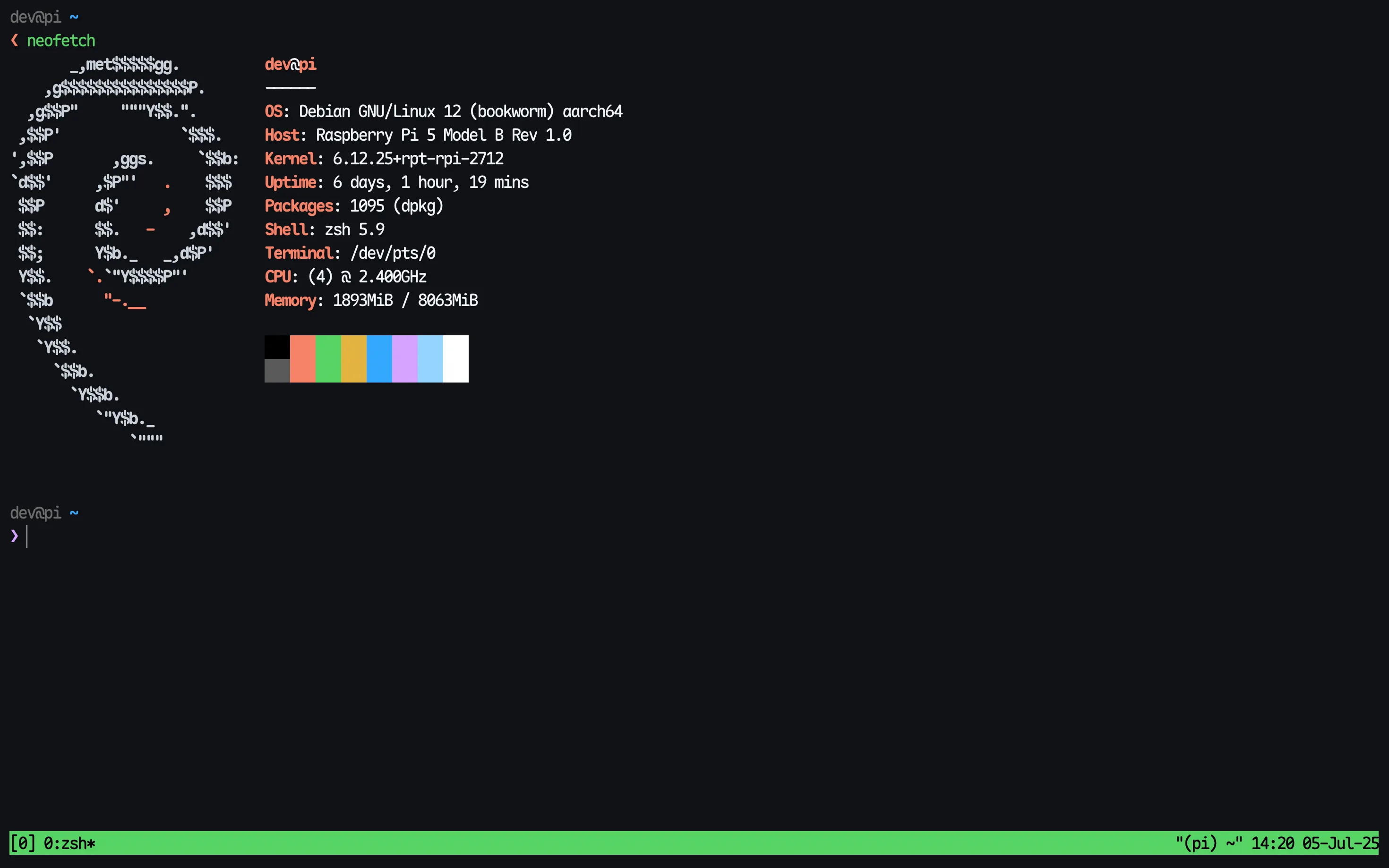
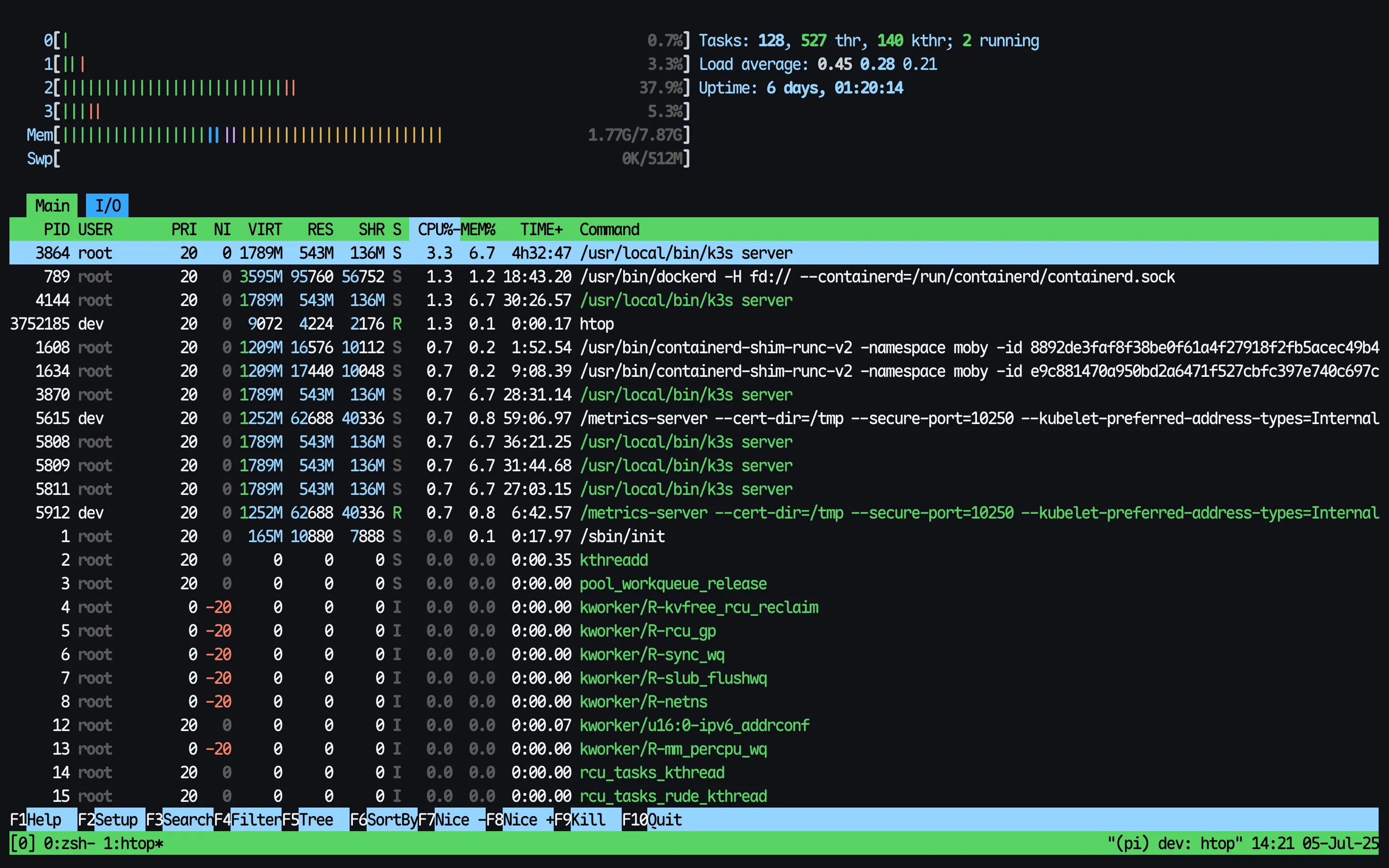
I bought a Raspberry Pi 5 Model B (8GB RAM), a 256GB SD card with good write endurance, a case, and the power supply. Flashed Debian Bookworm Server onto it, installed Docker and some essentials, and started hosting a few of my services. Even with containers and a couple of headless browsers humming along, the Pi just chilled.
See, how the Pi is barely sweating:
The printer problem#
I had an Epson L3110 inktank printer at home for years. It’s reliable, prints well — but it’s strictly USB. No Wi-Fi. No network capability.
Every time someone needed to print, the drill looked like a mini side quest:
- Transfer the file to a laptop or phone with a USB-C port
- Boot up the device
- Plug in the printer
- Move the file over
- Hit print
- Wait for the job to finish
- Unplug the printer
All in, it’s a solid 5-minute ritual—every single time. Printing shouldn’t feel like compiling code with 100+ dependencies.
One thing I tried was using the USB port on my router. It looked promising—right up until I ran into vendor lock-in. Flashing custom firmware was more trouble than it was worth. I always had a feeling the Pi could handle it, just never got around to setting it up.
Finally deciding to fix it#
That Sunday came. I’d been using Linux long enough to know about CUPS — the Common UNIX Printing System. It’s a modular printing system developed by Apple that allows a computer to act as a print server. It uses the Internet Printing Protocol (IPP) and supports drivers, filters, and backends for converting print jobs and interfacing with physical printers.
It can make a USB printer available over the network, support job queueing, handle authentication,
and even expose web-based management at localhost:631. It’s what Linux uses behind the scenes when
you hit “Print.”
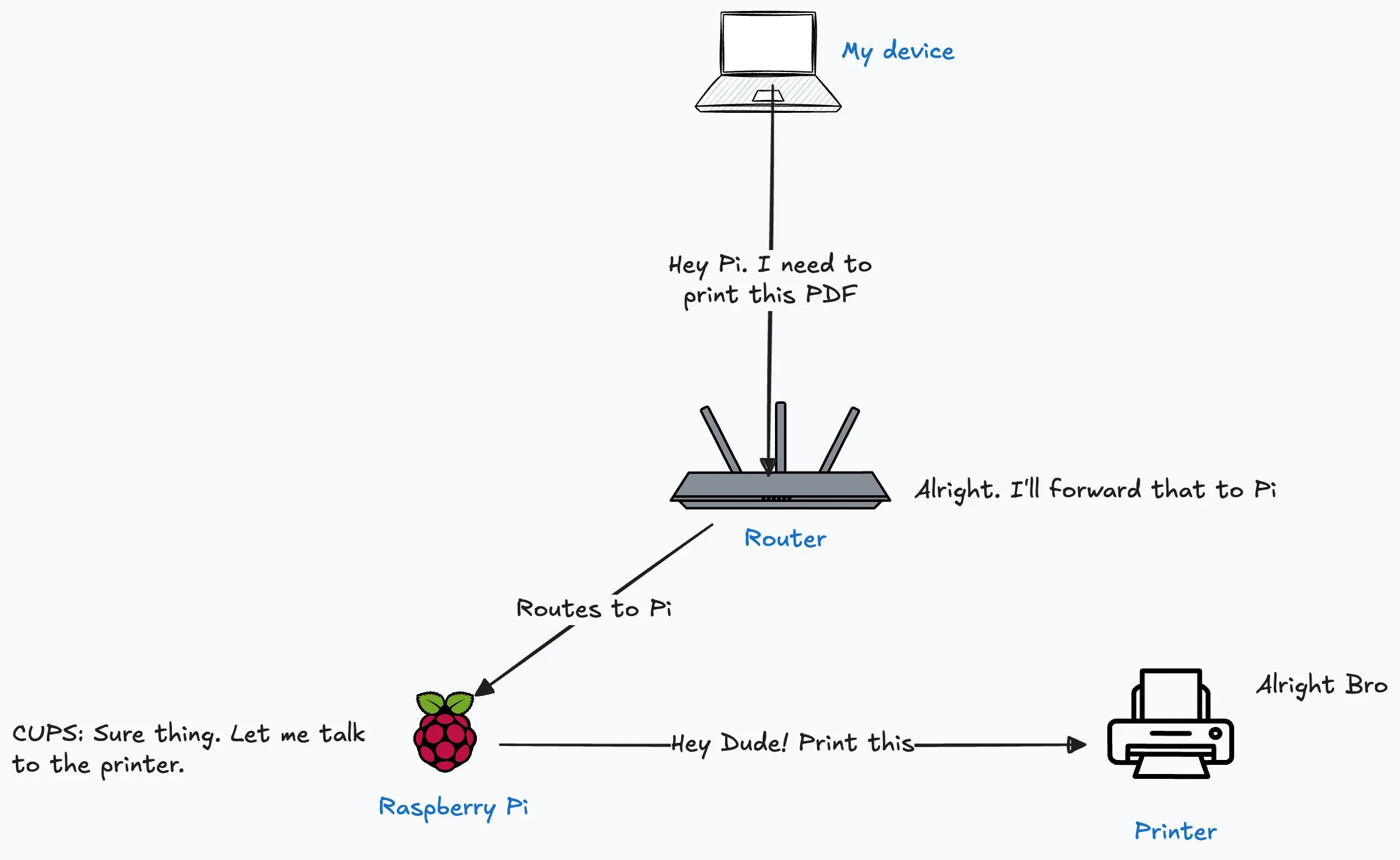
My plan: connect the USB printer to the Pi, install and configure CUPS, make the printer network-accessible — and ideally never deal with file transfers for printing again.
This is a dead simple diagram of the setup:
Enough Talk, How to do it?#
1. Plug the printer into the Pi#
Connect the printer via USB and make sure it shows up:
lsusbYou should see something like Epson or Canon listed. If it’s detected, you’re good.
2. Install CUPS and printer drivers#
sudo apt updatesudo apt install cupsEnable and start the service:
sudo systemctl enable cupssudo systemctl start cupsFor Epson L-series printers (L3110, L3310, etc.): install the ESC/P-R driver from the apt repository:
sudo apt install printer-driver-escprImportant: Do not download the
.debdriver from Epson’s official website. Those packages are compiled for x86/x86_64 and will not run on the Pi’s ARM CPU. Theprinter-driver-escprpackage from apt is the ARM-compiled version and is the correct one to use.
3. Add your user to the lpadmin group#
CUPS restricts admin access to users in the lpadmin group:
sudo usermod -aG lpadmin $USERnewgrp lpadmin4. Test: Print from the terminal (important!)#
Before messing with config files and web UIs, try printing a test page directly:
lpstat -p -d # See if printer is recognizedIf it’s listed, try:
echo "Test page from Pi" | lpThis sends a simple print job. If it prints — great. CUPS is working.
If not, check with:
lpqor:
journalctl -u cups -n 505. Configure CUPS to allow network access#
By default, CUPS binds to localhost only and has the web interface disabled. Let’s open it up.
The quickest way is with cupsctl:
sudo cupsctl --remote-admin --remote-any --share-printersOr manually edit /etc/cups/cupsd.conf:
sudo vim /etc/cups/cupsd.conf5.1 Listen on all interfaces#
Replace Listen localhost:631 with:
Port 6315.2 Allow access from LAN#
<Location />  Order allow,deny  Allow @LOCAL</Location>
<Location /admin>  Order allow,deny  Allow @LOCAL</Location>
5.3 Enable the web interface#
WebInterface Yes5.4 Keep CUPS running persistently#
By default, CUPS has IdleExitTimeout 60 — it exits after 60 seconds of inactivity (socket activation brings it back on demand, but it causes unnecessary latency for a print server). Set it to 0:
IdleExitTimeout 05.5 Enable mDNS broadcasting#
Make sure this line is present (it enables AirPrint/Mopria discovery):
BrowseLocalProtocols dnssd6. Restart CUPS#
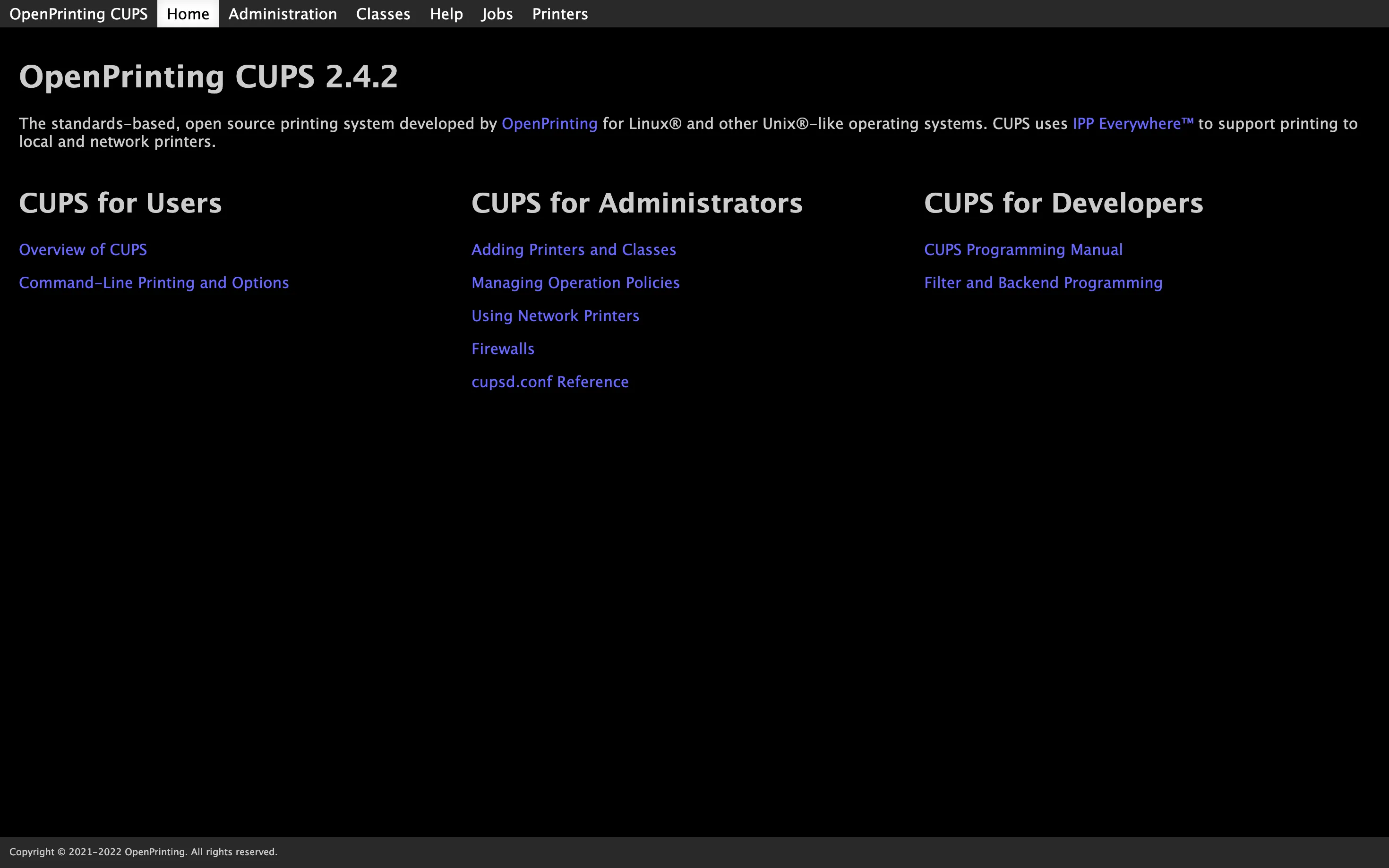
sudo systemctl restart cupsYou should now be able to visit:
http://<your-pi-ip>:631You should see the CUPS web UI like this:
7. Add the printer#
Option A: Web interface
- Go to Administration → Add Printer
- Log in with your Pi user creds
- Select your USB printer from the list
- Name it, and check Share This Printer
- Select the driver for your printer model (if your exact model isn’t listed, try the closest one in the same series — it usually works)
- Finish and verify it shows under Printers
Note: Some printers enumerate under a slightly different model name than what’s printed on the box. For example, the Epson L3310 shows up as
L3110 Series— that’s expected.
Option B: CLI (one-liner)
First, find the USB device URI and the exact PPD name:
sudo lpinfo -v # find the usb:// URI for your printersudo lpinfo -m | grep -i <model-name> # find the right PPDThen add it:
sudo lpadmin -p MyPrinter -E \  -v '<uri-from-lpinfo-v>' \  -m '<ppd-from-lpinfo-m>' \  -D 'My Printer' \  -o printer-is-shared=true
sudo lpadmin -d MyPrinter   # set as system default
8. Verify it’s working#
lpstat -t # should show the printer as idle/enabledTry a test print:
echo "Test page from Pi" | lp9. AirPrint, Mopria, and mobile printing#
This is the part that makes the whole thing magical.
Once CUPS is sharing the printer and Avahi is running, your phone just finds it. No app, no driver, no IP address to memorise.
9.1 Install Avahi#
sudo apt install avahi-daemon libnss-mdnssudo systemctl enable avahi-daemonsudo systemctl start avahi-daemonAvahi implements Apple’s mDNS/Bonjour protocol. It reads CUPS’s shared printer list and broadcasts
an _ipp._tcp service record over multicast — the same mechanism that AirPrint and Android’s Mopria
stack both listen on. One advertisement, two platforms.
You can verify the printer is being advertised:
sudo apt install avahi-utilsavahi-browse -rpt _ipp._tcp | grep -i <your-printer-name>You should see it listed with a TXT record containing mopria-certified=1.3 and URF=... — meaning
both Android and iOS will recognise it natively.
Now your Pi (and printer) is also reachable by hostname at:
http://<your-pi-hostname>.local:6319.2 Printing from iOS#
Open any app → tap the share/print icon. The printer appears as “Your Printer @ <hostname>” automatically. That’s AirPrint — built into iOS since 2010. No app needed.
9.3 Printing from Android#
Modern Android (8+) ships with the Mopria Print Service pre-installed. Open any app → Print → it auto-discovers the printer over mDNS. Works out of the box.
If it doesn’t appear, install Mopria Print Service from the Play Store and make sure it’s enabled under Settings → Connected Devices → Printing.
Some Caveats That You Should Know#
-
mDNS is link-local. The printer advertisement doesn’t cross routers or VLAN boundaries. Your phone needs to be on the same subnet as the Pi. If you have a guest Wi-Fi network, don’t expect it to work from there.
-
Give your Pi a unique hostname. If you have more than one Pi on the network and both are named
raspberrypi, mDNS breaks. Discovery becomes unreliable. Just rename it inraspi-configor/etc/hostname. -
Set a static IP (or a DHCP reservation on your router). The printer will always be discoverable via
<hostname>.local, but if you reference the Pi by IP anywhere (bookmarks, scripts, etc.), a DHCP change will break it. -
Fallback: manual IPP URL. If auto-discovery doesn’t work for whatever reason, you can always add the printer manually in your phone’s settings using:
http://<pi-ip>:631/printers/<printer-name>Most mobile print dialogs accept a manual IPP URL.
Final Thoughts#
After one hour of hacking. This is what I got:
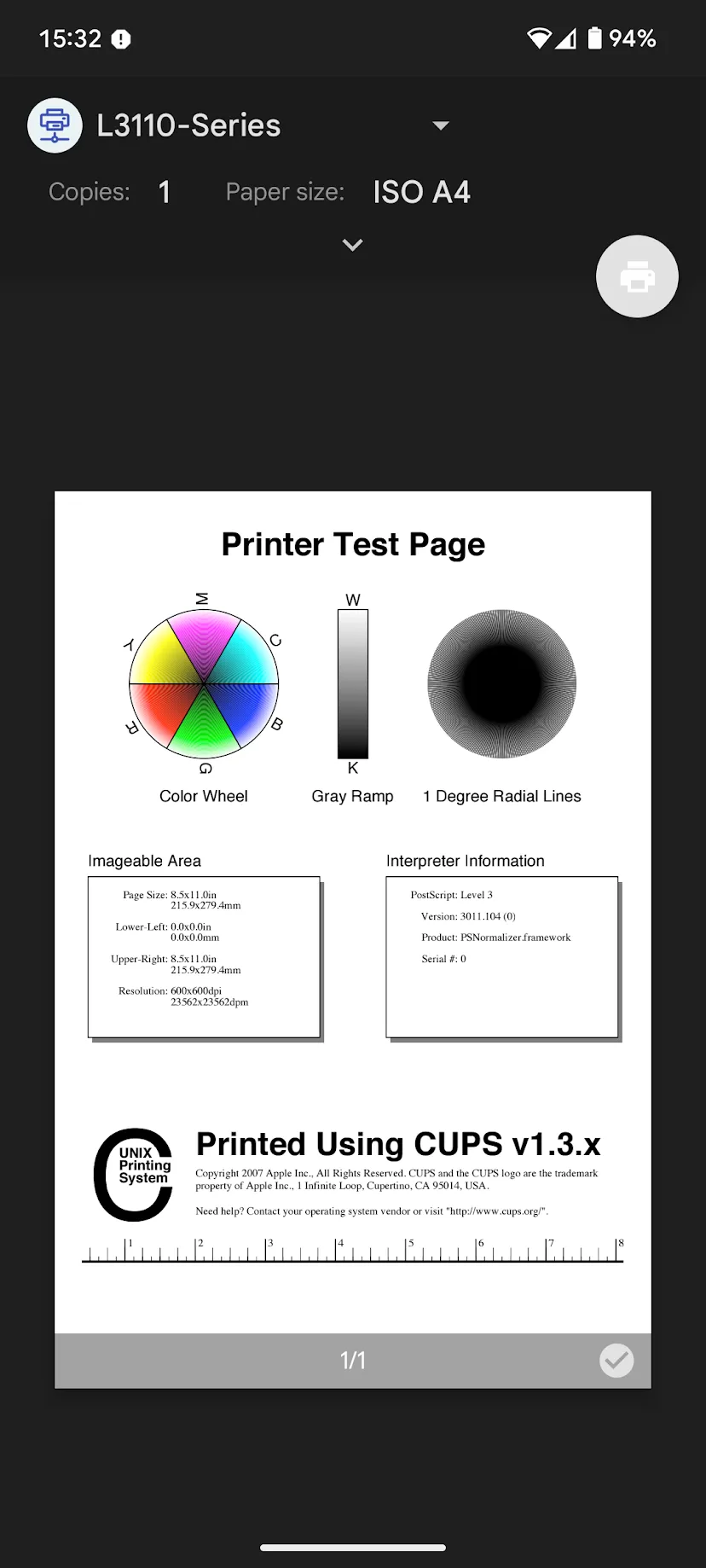
No more cable swapping, no more file transfers, no more printer amnesia. Just a printer that shows up on the network like it should’ve from day one.
Also — a fun bit of trivia — the origins of the Free Software Movement actually trace back to a printer driver problem at MIT. Richard Stallman got annoyed that he couldn’t fix the bugs in a Xerox printer because the driver was proprietary. He decided that software should be free to study, modify, and redistribute — and thus, a movement was born.
In a weirdly poetic way, fixing a printing problem with free software on a $60 single-board computer feels like it closes that circle.
In the end, it’s not just about printing. It’s about control. It’s about choosing tools that don’t fight you. It’s about that quiet satisfaction when something works because you made it work.
Happy hacking, hackers. Keep the spirit alive.